Setting up a new Mac
USU now uses management software (JAMF) to help setup and manage Apple products. After 1 May 2024, any Apple product purchased via USU authorized vendors (USU Bookstore & CDWG) will automatically be enrolled.
There are several benefits to this:
- you're automatically enrolled in eduroam
- the most commonly used software will automatically be installed to your new Mac
- updates can be more effectively managed
Please contact Joe if you have questions or would like help
joe.shope@usu.edu, 7-0445 or 881-8107
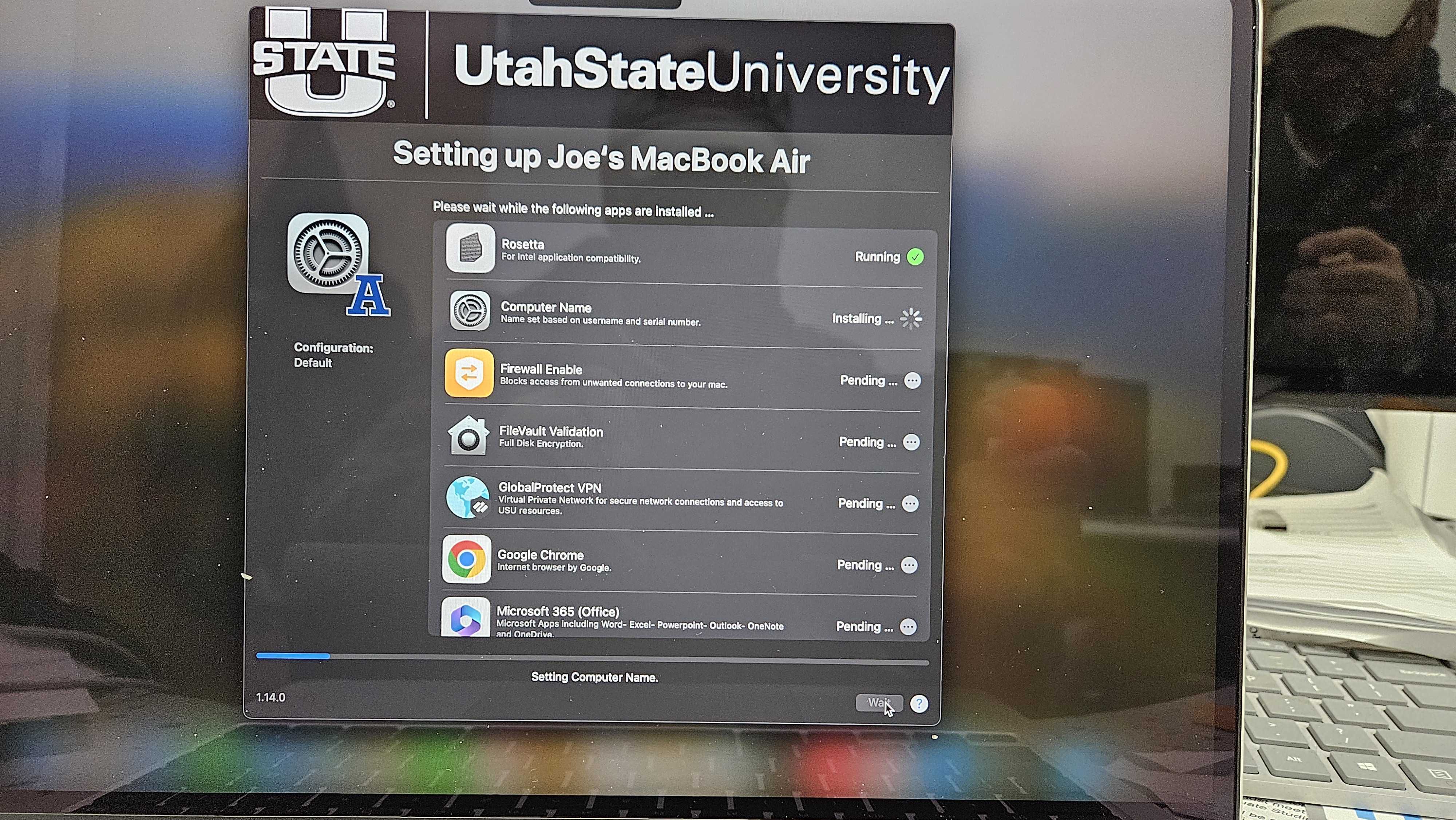
When you power up your new Mac these are the initial screens you will see.
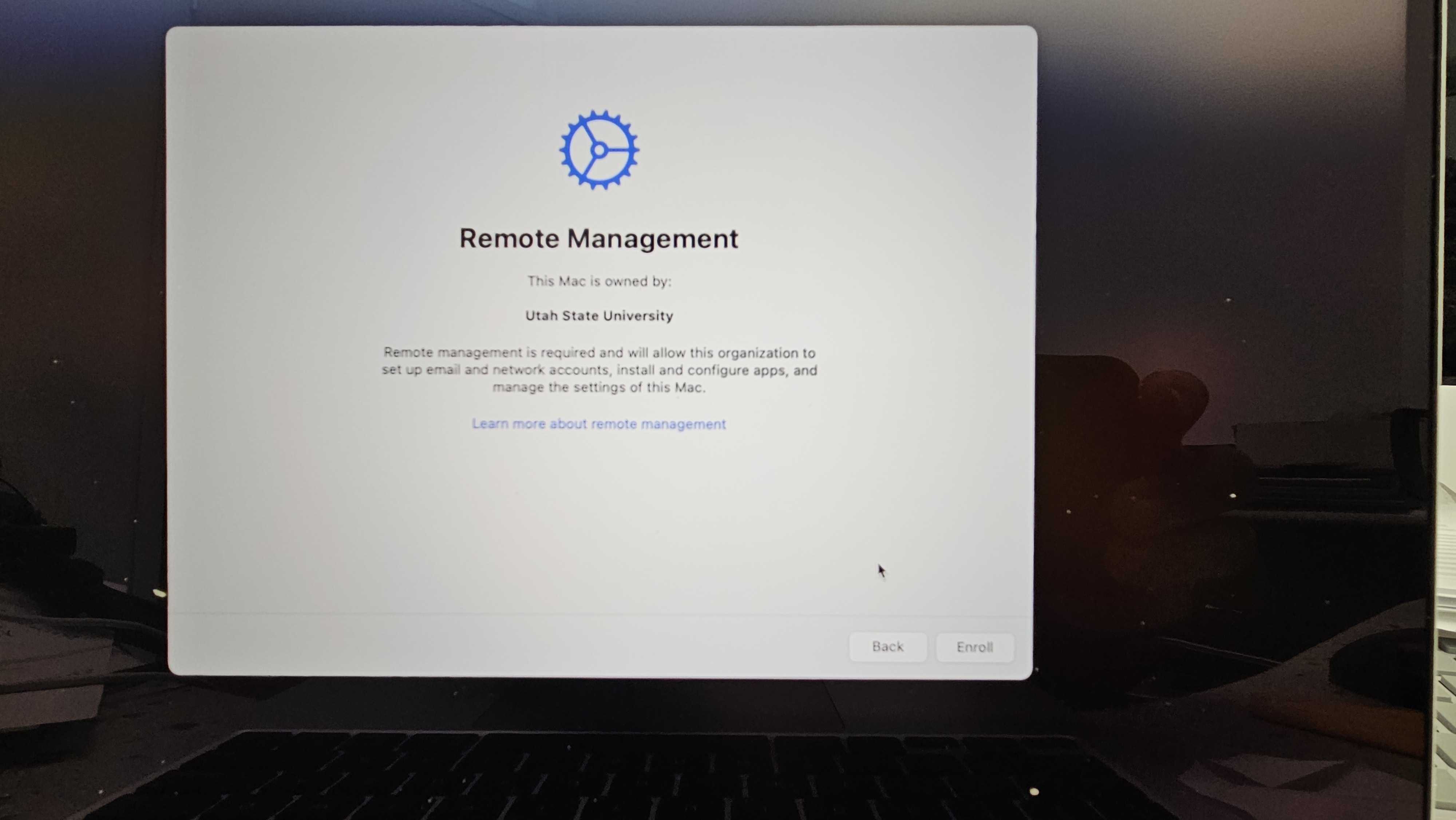
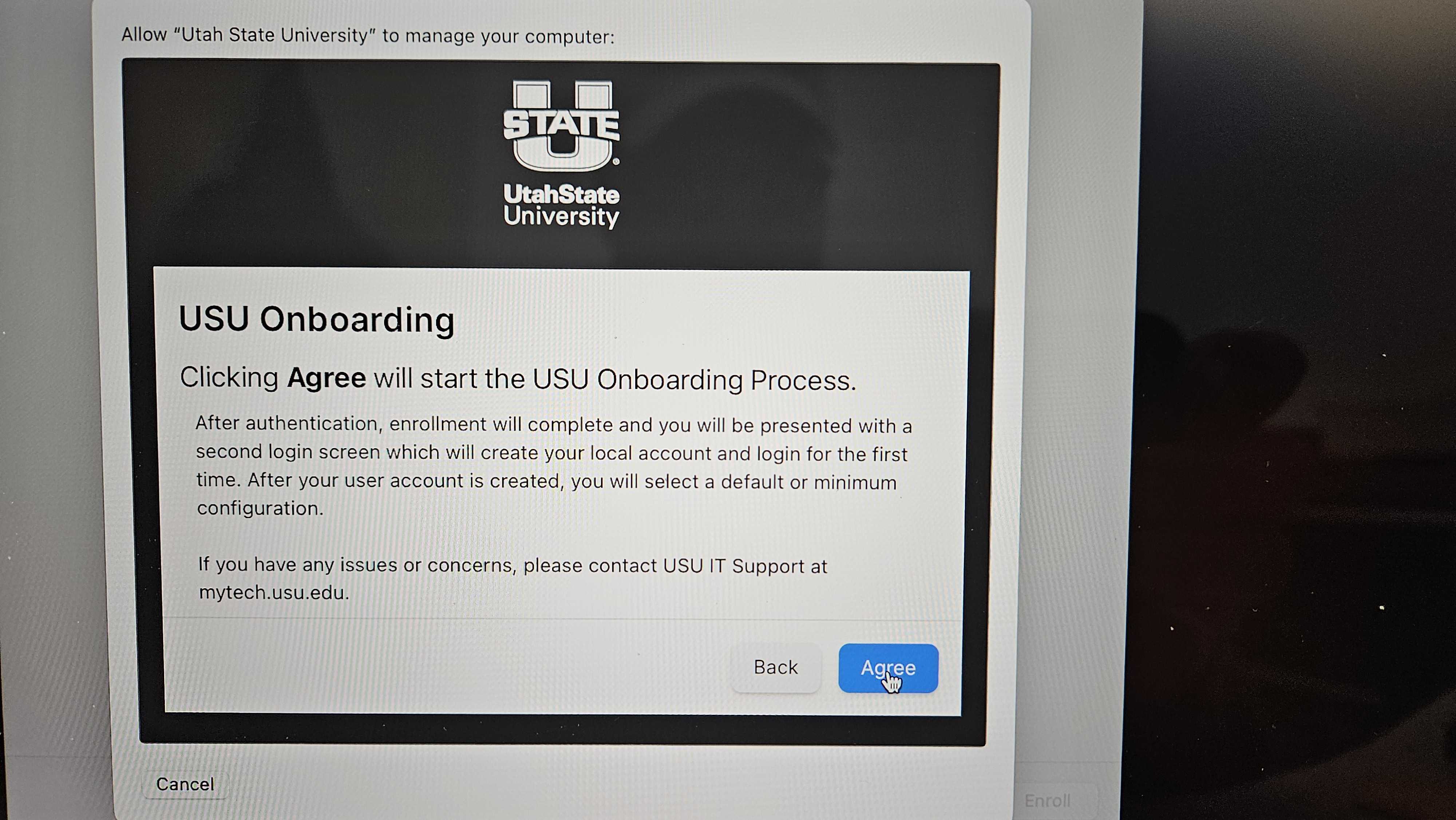
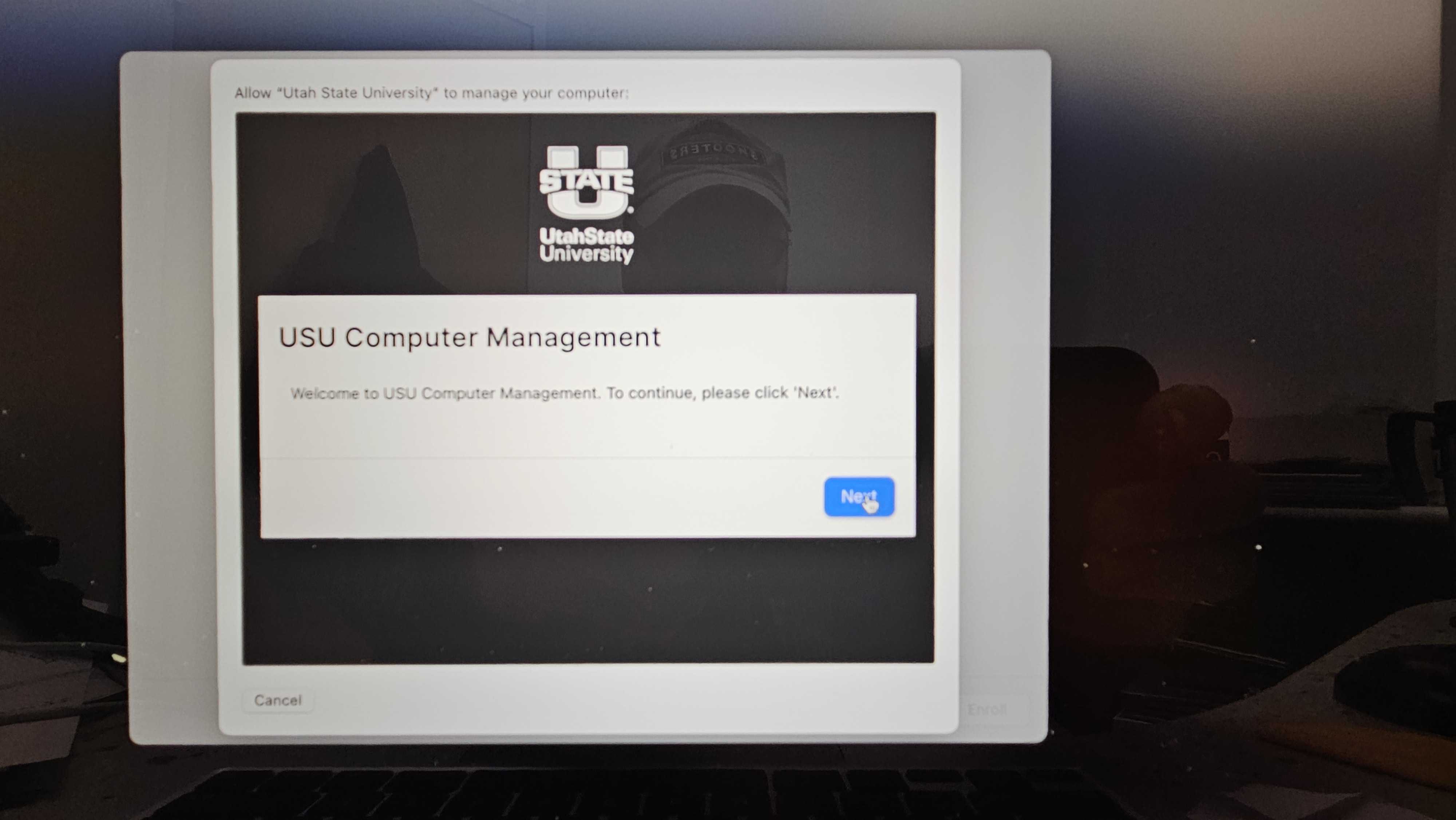
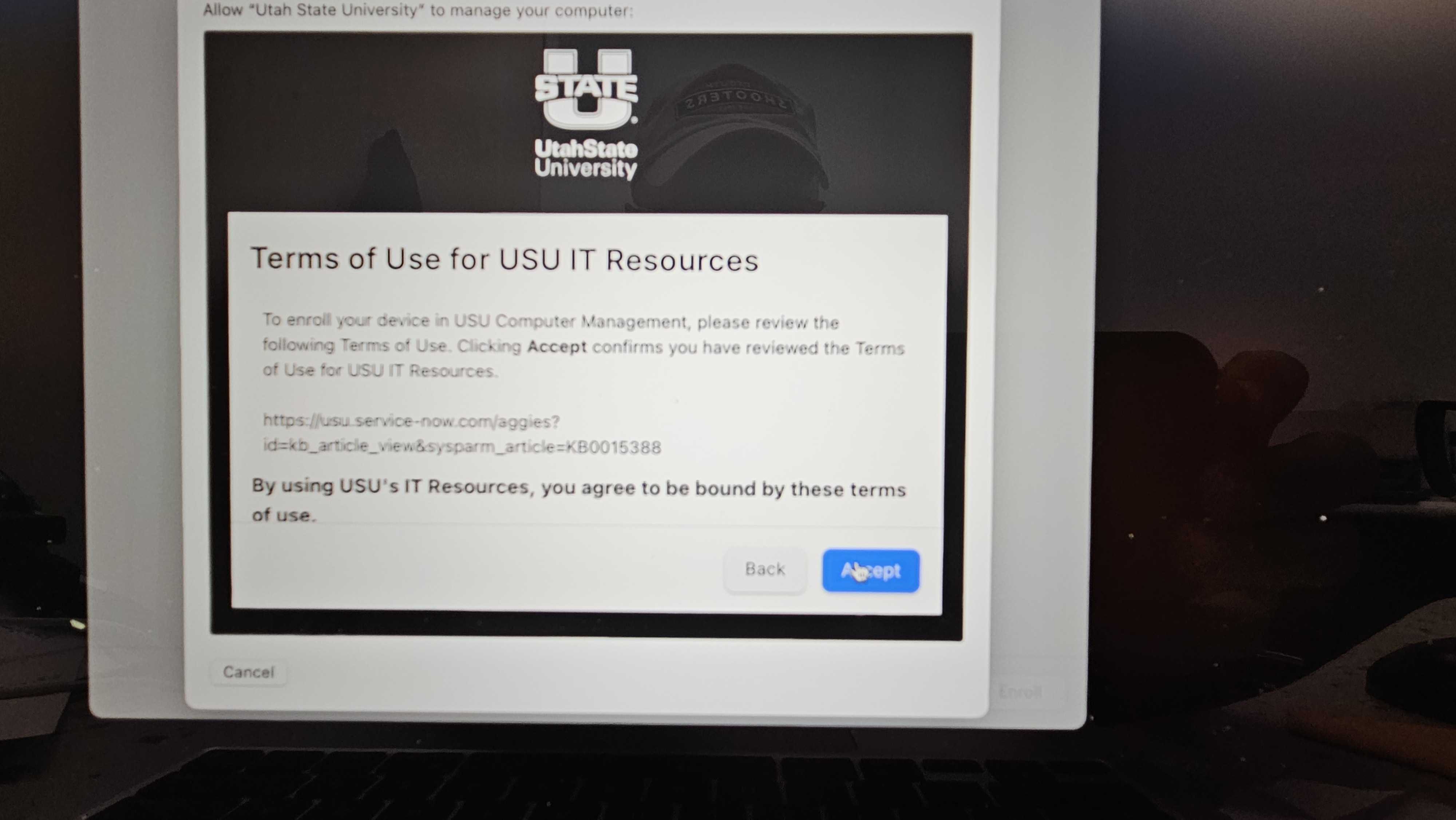
This is perhaps the most important screen in the setup. The person who's going to be using the computer MUST be the person that signs in initially.
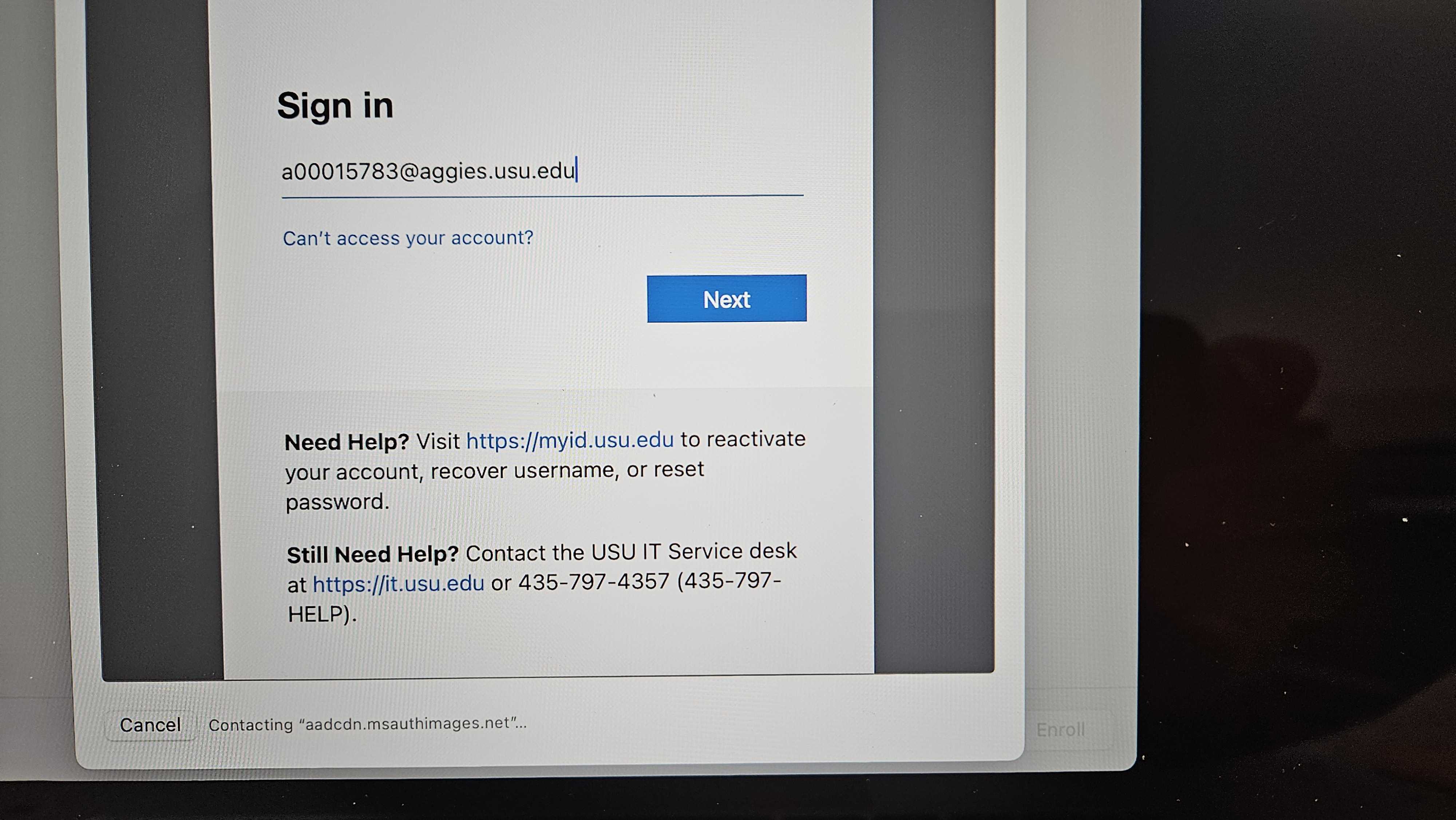
At the initial sign-in screen you must use your A#@aggies.usu.edu to login.
Following this you will set the timezone and then sign-in again (with your A#@aggies.usu.edu)
At the initial sign-in screen you must use your A#@aggies.usu.edu to login.
Following this you will set the timezone and then sign-in again (with your A#@aggies.usu.edu)
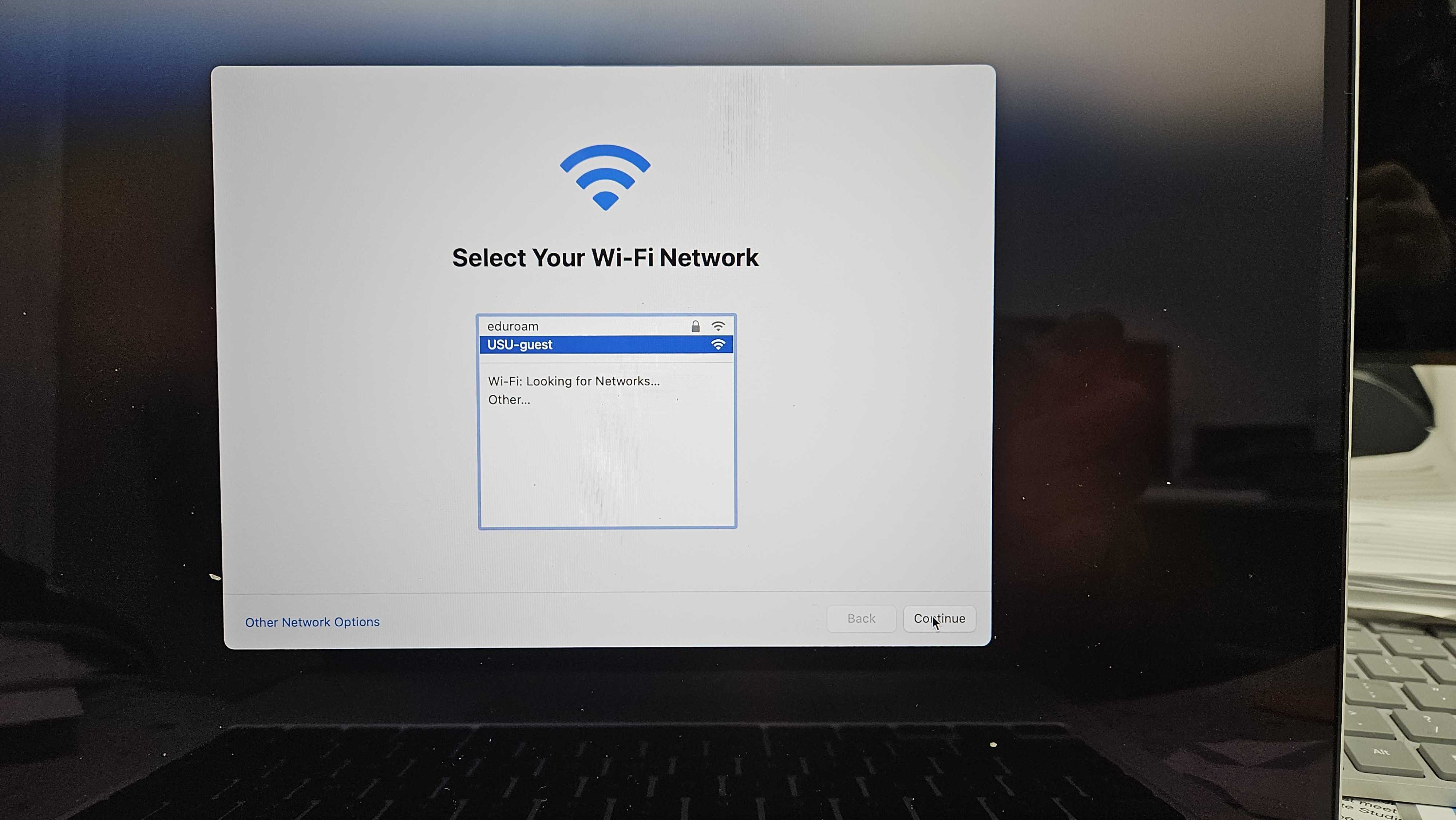
It's simplest to use "default install".

I chose USU guest. It will automatically connect to eduroam at a later stage.
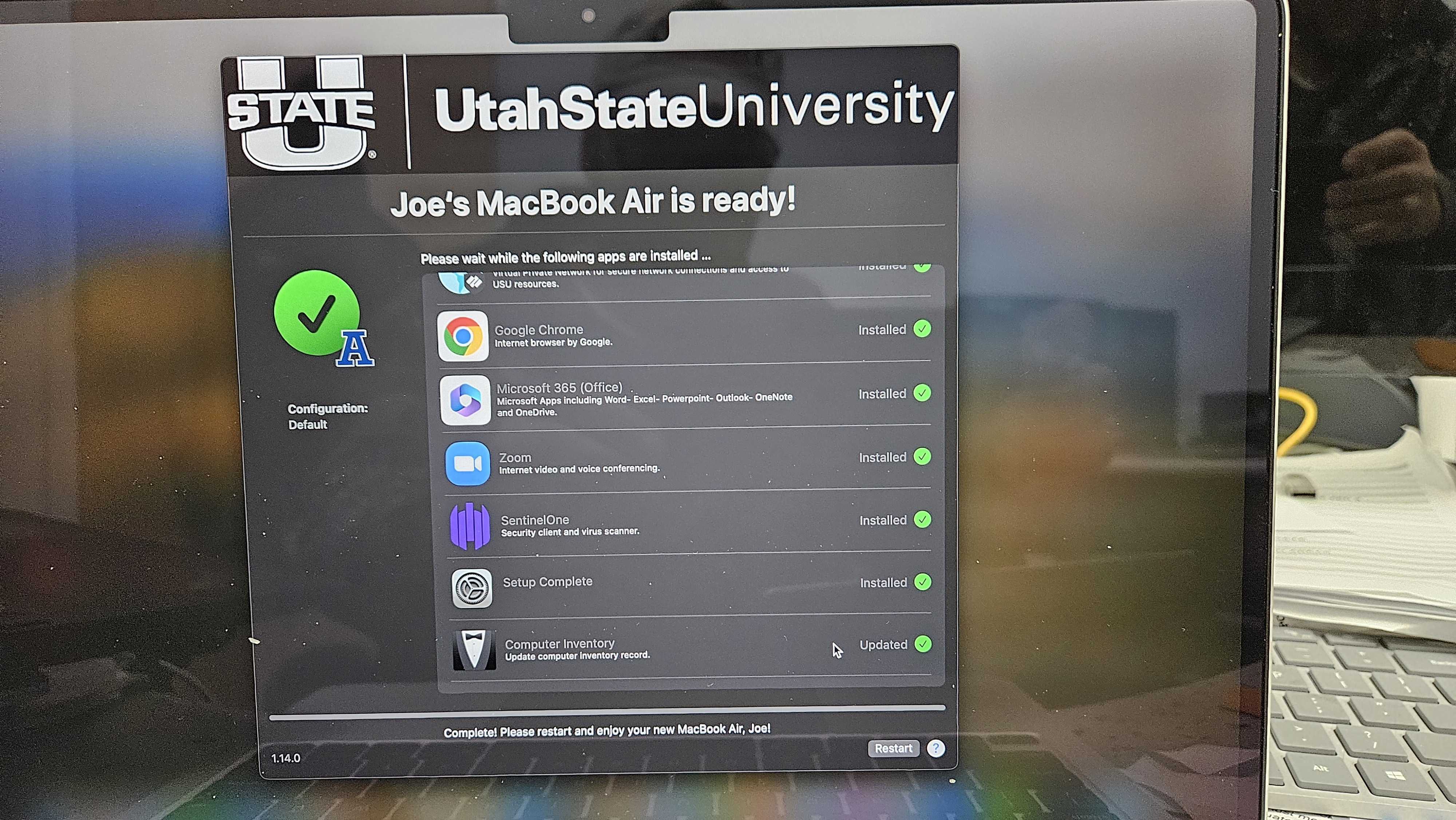
At the completion here are a couple of pics of the installed apps list.
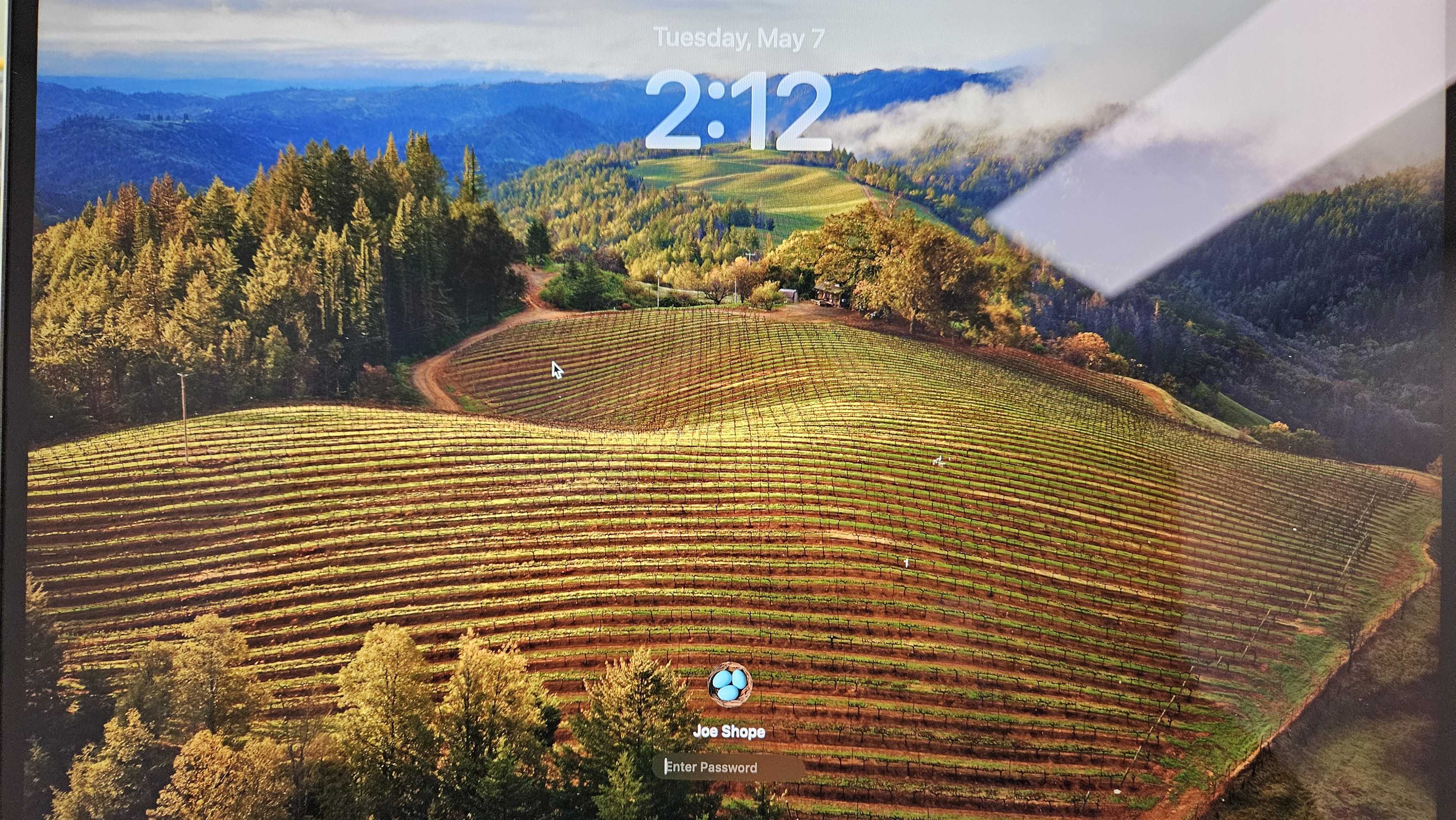
After the setup/installation is complete this is what the login screen looks like. It doesn't show your A# but you use your strong password.
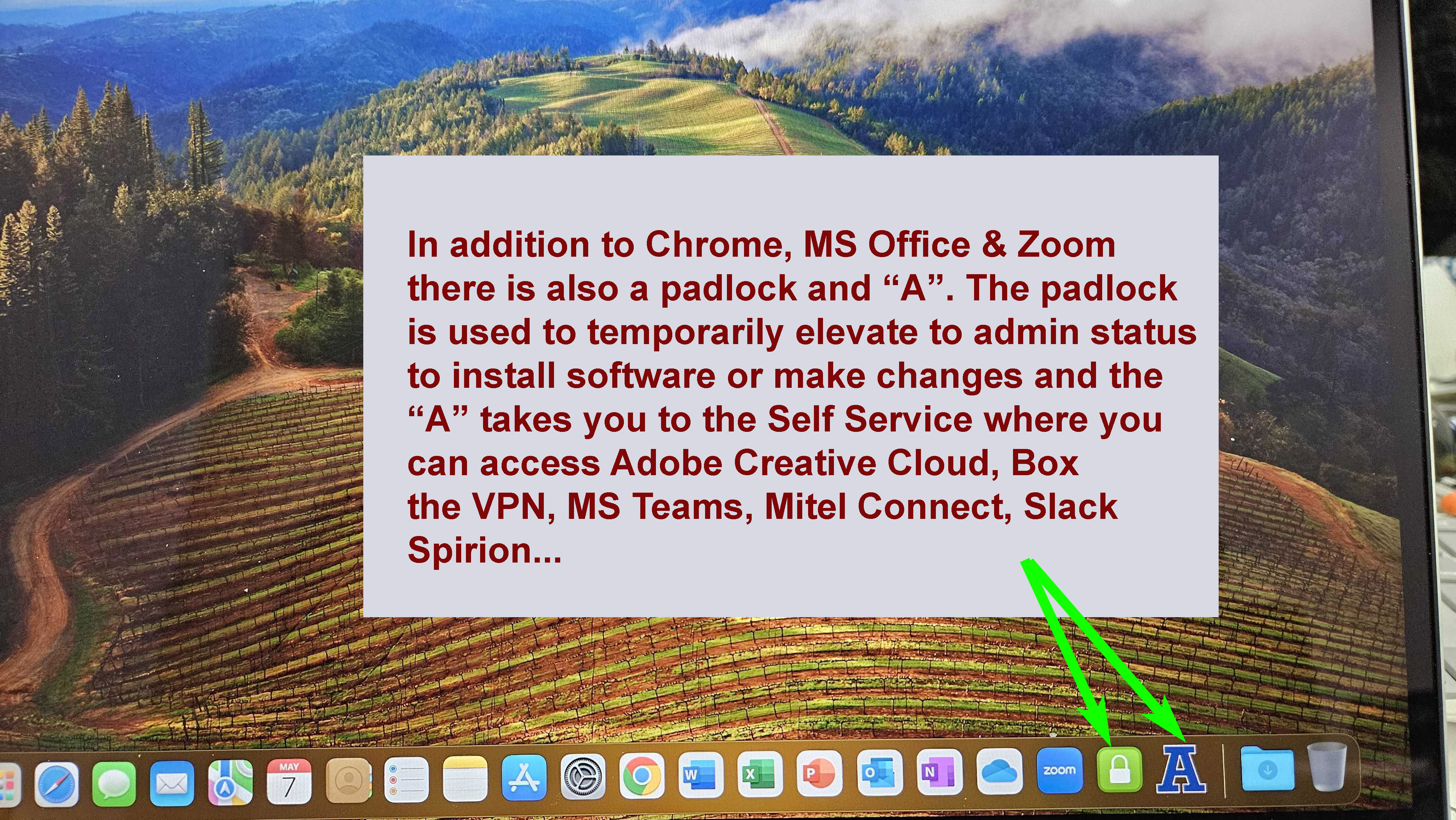
By default your user account is a standard user, the green padlock allows you to elevate to admin status on a temporary basis and the "A" takes you to a Self Service page where you can install a number of programs - without elevating to admin status.